A Better Way to Manage Your Creative Workflow
Are you tired of wasting your time designing your graphics on Canva, saving them on your computer, and then adding the graphics into your email, landing pages, and other content on HubSpot? This can be very time-consuming and can distract you from your tasks.
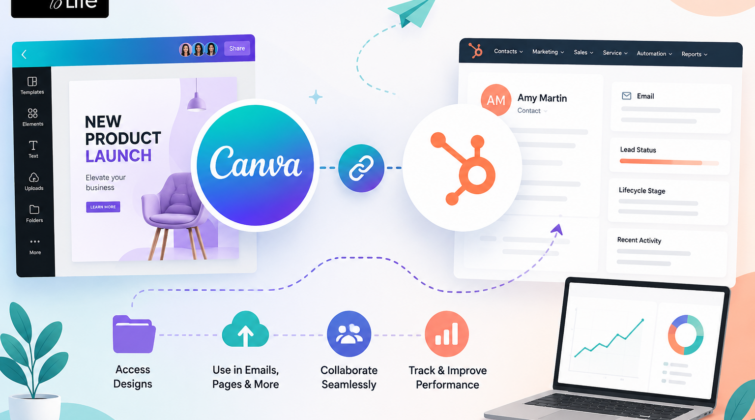
The good thing is that you can finally do away with this cumbersome process because of the Canva HubSpot Integration. You can now import your graphics to your emails, landing pages, social media posts, and other marketing materials within HubSpot without the need to leave HubSpot.
This integration will not only reduce the number of steps needed but will also allow you to integrate your design into your marketing data seamlessly. For small business owners and marketers alike, integrating their design and their marketing activities will make their lives easier.
Why does connecting your tools make sense?
In marketing, timing is everything. When you have a great idea for a campaign, you want to get it live as quickly as possible. If your design tool and your CRM don’t talk to each other, you lose precious time on manual tasks that could be automated.
You don’t need to be a HubSpot website developer to make your life easier. While there is definitely a time and place for complex site setups, basic daily tasks—like adding a new image to a blog post—should be effortless.
When you simplify these technical steps, your team gets to focus on what matters most: writing great content and engaging with customers. When you build with Dreams To Life, you are making sure your team has the right tools to get work done without unnecessary stress.
Features That Make Life Easier
The integration helps you transform your HubSpot account into one centralized place to store your creative content. This is how the integration will help you out:
- Easy Searching: Get yourself a special Canva tab in your HubSpot account without having to leave your browser tab.
- Auto Update: Whenever there are updates made to the design in Canva, these updates will automatically reflect on the HubSpot account.
- Smart Search: You don’t need to upload the file whenever you make some changes to the design.
- Quick Search: You will be able to search for your design using the name or keyword within the CRM.
- One Click Setup: Add images to emails and landing pages through just one click.
The Real Benefits for Your Team
Using these two tools together solves a lot of common headaches for marketing teams. Here is how it actually helps your business run better:
- Saves Significant Time: You stop downloading and re-uploading files, which saves you and your team hours every single week.
- Keep Your Brand Steady: Your team always pulls from your official design folders, so your brand looks consistent across every platform.
- Better Teamwork: Designers can share folders, and marketers can grab assets instantly without needing to send an email or a Slack message.
- Helps You Grow: Your team can handle more content projects because the process of getting those projects live is so much faster.
Integrating these tools is a smart move for any team. Whether you need help with custom HubSpot development Vancouver WA or just want to make your daily tasks smoother, having your creative files easily available is a great way to grow.
How to Set It Up (It’s Fast!)
You don’t need a technical degree to get this working. Here is how to do it:
- Get to the Marketplace: First, log into your HubSpot account and then go to the app Marketplace. Find the Canva app.
- Installation: Press the “Install” button and follow the easy steps to connect your Canva account.
- Design Start: Once it is linked, you can open any email or landing page in HubSpot.
- Insert: Click the “Insert” menu or the image icon. You will see your Canva library right there waiting for you.
When you get this set up, your design work becomes a natural part of your marketing funnel. When you build your strategy with Dreams To Life, you are choosing efficiency and a stress-free workday.
Tips for Staying Organized
Once you have the connection active, spend a little time organizing your Canva folders. Group them by project, client, or campaign type. This makes the search feature in HubSpot feel like a superpower. You won’t have to dig through hundreds of old files to find the one you need.
Also, remember that the integration between Canva and HubSpot will work better when your folders are neat. The “busy work” is stripped out for your team to concentrate on tasks that generate leads, such as experimenting with design ideas, crafting eye-catching titles, and executing effective marketing strategies. At Dreamstolifellc, we recommend maintaining a well-organized design library to help businesses streamline collaboration, improve productivity, and get the most out of their Canva and HubSpot integration.
Key Takeaways:
- Save time: No more uploading and downloading. Just get your files in one click.
- Maintain brand consistency: Everyone in your team will access files from the same source, so there’s no need to be afraid of using outdated or inconsistent files.
- All-in-one tool: Your design and CRM tools will work as one team.
- Easy to set up: You don’t need to be a tech genius; you’ll have it up and running in just a few minutes.
- Built to grow: As your business gets busier, you won’t have to worry about a mess of files—this keeps everything organized, no matter how much you create.
Frequently Asked Questions:
Can I edit a design inside HubSpot?
You can pick and insert your designs, but for big changes, it will take you over to Canva so you have all the design tools you need.
Can I use this on my landing pages?
Of course, if you can add an image through HubSpot, then you can use this one. This is perfect no matter if you are designing a landing page, creating an email, or just posting a blog.
Can my whole team use it?
You bet. As long as you’ve got shared folders set up in Canva, your whole team can jump in and start using it immediately.
Will it hog all my storage space?
Not a chance. We made sure the integration stays nice and lightweight, so it keeps your HubSpot tidy and won’t eat up your storage limits.
Can I edit a design inside HubSpot?
You can pick and insert your designs, but for big changes, it will take you over to Canva so you have all the design tools you need.
Can I use this on my landing pages?
Of course, if you can add an image through HubSpot, then you can use this one. This is perfect no matter if you are designing a landing page, creating an email, or just posting a blog.
Can my whole team use it?
You bet. As long as you’ve got shared folders set up in Canva, your whole team can jump in and start using it immediately.
Will it hog all my storage space?
Not a chance. We made sure the integration stays nice and lightweight, so it keeps your HubSpot tidy and won’t eat up your storage limits.